CHITRAVA · From your photo to your selling kit
How it works
One clear path: add your product, create your kit, check it, then download. You do not need to add a product on a different page first.
Actual CHITRAVA screens · Example product: a necklace · Start-to-finish instructions below
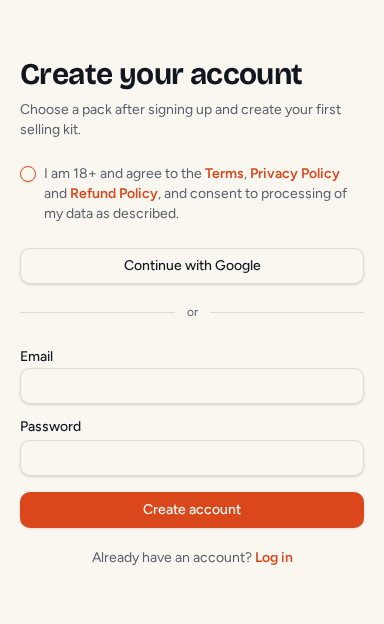
Create your account
Choose Get started or CREATE YOUR SELLING KIT. On the sign-up page, read and accept the consent checkbox, then use Continue with Google or enter your email and a password of at least 8 characters and press Create account.
If you are asked to confirm your email, open the confirmation link, then log in. Already have an account? Choose Log in. After signing in, you arrive at Create Kit.
On Create Kit: Step 1 · Add your product photo
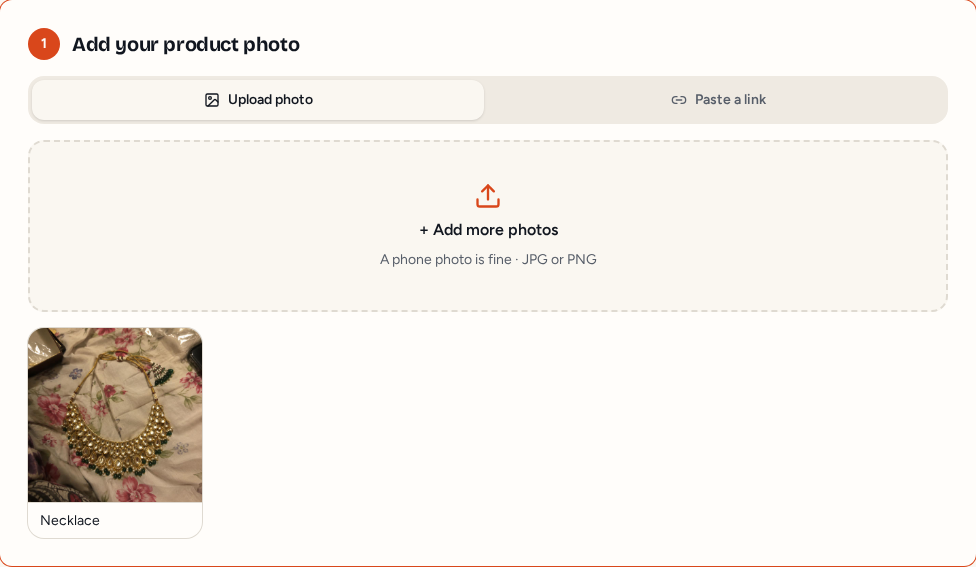
Add your product photo — or paste its link
Choose Upload photo, press Tap to choose a photo, and select a clear JPG or PNG. A phone photo is fine. Use a well-lit photo of one product, without blur or heavy filters. Check the product name below the photo and change it if needed.
Already have a product page?
Choose Paste a link, paste your product page URL, and press Read page. When photos are found, choose the main photo and check the imported name, description, category and price in Step 2. Steps 2 and 3 stay visible while you start.

Uploading several photos? You can add up to 20 at once. Each photo creates a separate kit and uses one kit from your balance. Start with one photo for your first kit.
On Create Kit: Step 2 · Tell us about it
Tell us about your product
- What is it? Choose the right category, such as Jewellery or Fashion.
- Price (optional). Enter the selling price if you want it included in the product information.
- Language for captions. In the photo flow, choose English, Hinglish, Hindi, Telugu, Tamil, Kannada, Marathi, Bengali or Gujarati. Or leave My usual (Settings) selected.

For future kits, you can save your brand details and usual language in Settings. This is optional; you can start with your product photo.
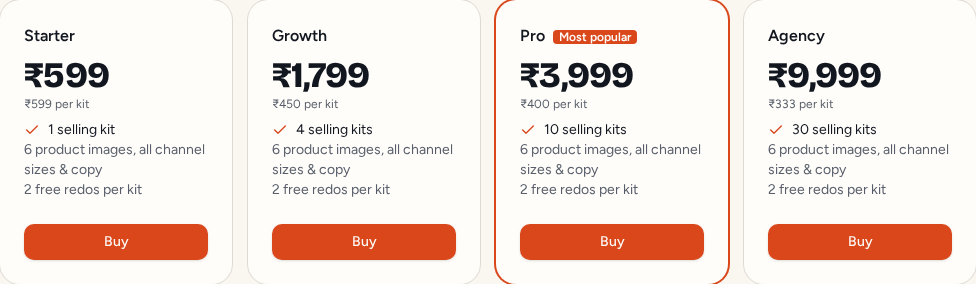
Buy a pack if you have no kits left
With a balance of 0, Step 3 shows BUY KITS TO CREATE (from ₹599). Open Billing, choose a pack and press Buy to pay through Razorpay. Wait for payment confirmation and check that your selling-kit balance has increased.

Return to your unfinished product
Photo upload: use CONTINUE CREATING YOUR KIT in Billing. Your text details are kept in this browser tab. If a refresh clears the photo, choose it again; photo files are not saved in browser storage.
Link import: press SAVE & BUY KITS in Step 3. The product is saved before Billing opens. After buying, choose CONTINUE WITH SAVED PRODUCT, then press CREATE YOUR SELLING KIT on that product page.

On Create Kit: Step 3 · Create your selling kit
Create your selling kit
Press CREATE SELLING KIT. In the link flow, the button says CREATE SELLING KIT (uses 1 kit). One product uses exactly 1 selling kit from your balance.
CHITRAVA starts creating the images and selling text. Your kit opens after startup; images can appear gradually. The usual estimate is about 2–3 minutes, not a guaranteed deadline. Leave the kit page open while it works, or find the started kit later in My Kits.
Review the images and selling text
Your kit shows how many images are ready. New kits contain 6 different product images, each with a different setting or selling purpose, plus ready-sized downloads and selling copy.
- Product images
- Clean catalogue, signature studio, real-life use, social editorial, detail & benefit, and campaign hero images.
- Social posts
- Image sizes for Instagram posts, Stories / Reel covers and WhatsApp status.
- Marketplace listing
- Amazon, Flipkart and Meesho image sizes, product title, descriptions, benefits and SEO description.
- Selling copy
- Instagram caption and hashtags, WhatsApp selling message, promo line and a description in your language where provided.
- Ads
- A landscape image, ad headlines, ad text and suggested calls to action.
Need a different image?
Use the refresh-arrow button on an image (Try a new creative direction). Each kit includes 2 free redos in total, not two per image. The remaining number appears above Product images. A failed image can be retried free; redos do not take another kit from your balance. A whole kit is added back only if every image fails.
Check “Ready to list?” before you publish
Choose Amazon, Flipkart or Meesho to see a score and checks for photos, titles and keywords. Read any suggested fixes. You can paste an existing title into Check my current listing to check its title rules.
If available, press Fix my titles for each marketplace · free. This writes marketplace-specific titles once per kit at no extra cost. Use the copy icon beside the selected marketplace title to copy it.
Download your kit and use it to sell
- Everything together: once your images and text are ready, press DOWNLOAD COMPLETE SELLING KIT. The ZIP contains the available images in folders, channel-ready sizes, selling text in copy.txt, and a completed video if one was made.
- One image or size: use its download-arrow icon. Choose the marketplace-specific download for Amazon, Flipkart or Meesho rather than the raw image. A format is available only while its source image is ready and has not been deleted.
- Text: use the copy icon next to a title, description, caption or message. Paste it into your own marketplace listing, social post, WhatsApp message or ad.
Optional: Video beta
When images are ready, Make my video can request one optional 6-second vertical video at no extra charge while beta is available. Play and review it, then download it if completed. Video is not guaranteed and is not part of the paid pack. Additional videos use 1 selling kit each; a failed video does not reduce your balance.
Find your kits, manage them, and sign out
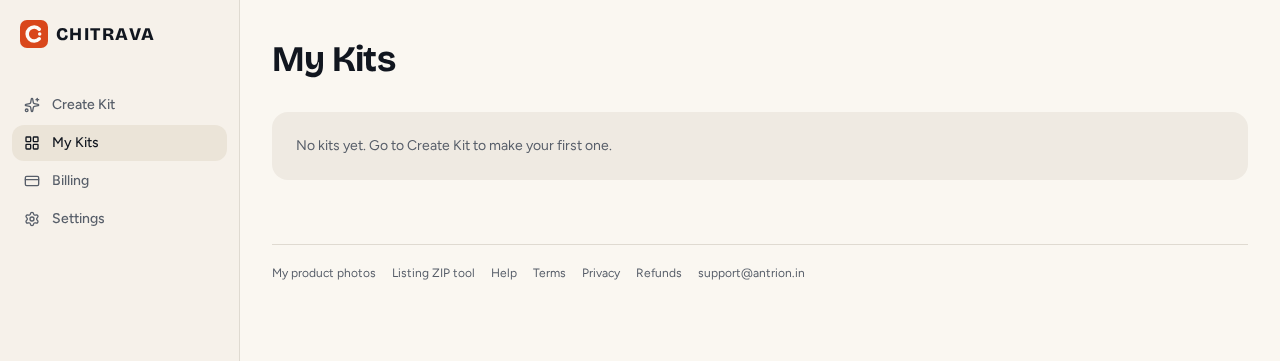
Open My Kits to find work you have already started, check progress or download again. For a new product, return to Create Kit.
- Did this work? After using an image, optionally choose Sold, Enquiries or Didn’t work. After at least five answers, your feedback helps guide future selling-copy prompts. This is your own feedback, not automatic sales tracking or a guarantee of better results.
- Delete: use the bin icon to delete an image, or Delete kit for the whole kit. Confirm only if you are sure. Deletion is permanent and does not add a kit back to your balance. Download anything you want to keep first.
- Billing: buy more kits, check your balance and history, and view available receipts.
- Settings: manage your brand and language, download account data or delete your account.
- Sign out: use Sign out in the computer side menu, the phone top bar or Settings. You will need to sign in again to open your kits.
The short version
Turn one product photo into a selling kit with CHITRAVA. Create an account, add your photo or product link, check the details and buy a prepaid pack. Create your kit, then review six different product images and selling copy. Check common Amazon, Flipkart and Meesho listing requirements, download ready-sized images, and copy your text into your own listings, social posts and ads. Packs start at ₹599 for one kit, with two free image redos per kit. Always review AI-generated content before using it. Listing approval and sales are not guaranteed. Optional video is beta, not a paid-pack entitlement.
Screenshots show the actual starting screens, not a fabricated completed kit. Result instructions describe the current kit page. No guaranteed sales, listing approval or video delivery.
Ready for your first product?
Start with one clear photo. Need help? Read Help & FAQ.